Obsidian plugin
Turn a video link into an Obsidian note, then chat with the video
Summarize Video To Text is a community plugin for Obsidian. Paste a YouTube, TikTok or Instagram link and the AI watches the video for you, then writes a structured note straight into your vault: TL;DR, key insights, timestamped chapters, and optionally a summary, quiz and full transcript. This guide walks through installing it, connecting your account and getting the first note out.
- Free and open source (MIT)
- Listed in the official community plugin directory
- Obsidian 1.13 or later, desktop and mobile
- YouTube, TikTok and Instagram
1. Install the plugin
The plugin is in the official community directory, so it installs like any other community plugin. No files to download by hand.
- Open Obsidian and go to Settings → Community plugins. If Restricted mode is on, turn it off.
- Click Browse and search for “Summarize Video To Text”.
- Click Install, then Enable. The plugin appears in the settings list on the left and a ribbon icon shows up in the left bar.
Shortcut: the “Open in Obsidian” button at the top of this page opens the plugin directly inside Obsidian's plugin browser. It needs Obsidian to be installed on this device.
2. Connect your account
The AI runs on summarizevideototext.com, so the plugin needs an account there. A free account is enough to start. Connecting takes one click and you only do it once.
- Open Settings → Summarize Video To Text and click Connect.
- Your browser opens the website. Sign in with Google or create a free account.
- The website sends you back to Obsidian and the settings page shows your account as connected.
If the browser cannot hand you back to Obsidian (some Linux setups, or a browser that blocks custom links), the website shows a token instead. Paste it into the Token field in the plugin settings and you are connected.
3. Summarize your first video
You do not watch the video first. The AI reads the whole thing, with real speech-to-text when the video has no captions, and writes the note in the language you choose.
- Copy a video link. YouTube, TikTok and Instagram links all work, including short links like youtu.be and vm.tiktok.com.
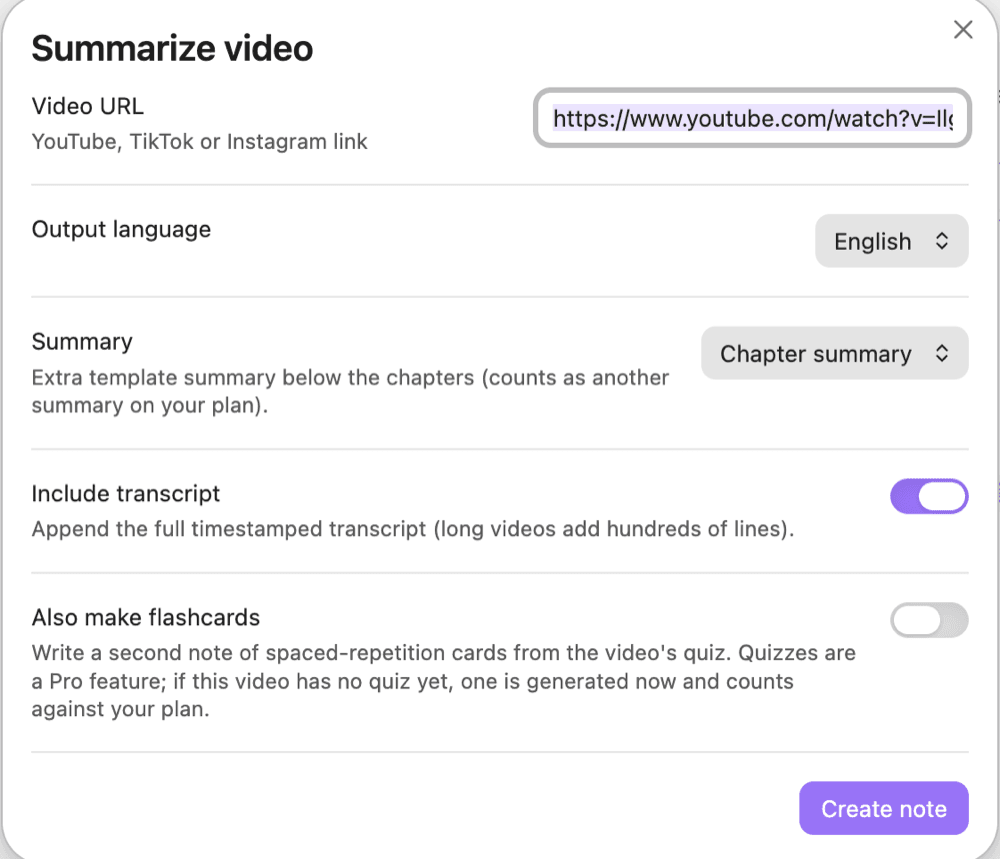
- Open the command palette (Cmd/Ctrl + P) and run Summarize video from URL. If your clipboard holds a link, the field is already filled in.
- Pick the output language and, if you want one, a summary template for this note. Auto follows your Obsidian interface language. Also make flashcards is in the same dialog, if you want a deck of review cards written alongside the note.
- Click Summarize. A few seconds later the new note opens in your vault, in the folder set in the plugin settings (Video Notes by default).
Fourteen output languages are supported, and the language is picked per note. An English talk can land as a Chinese note or the other way round.
4. What is inside a video note
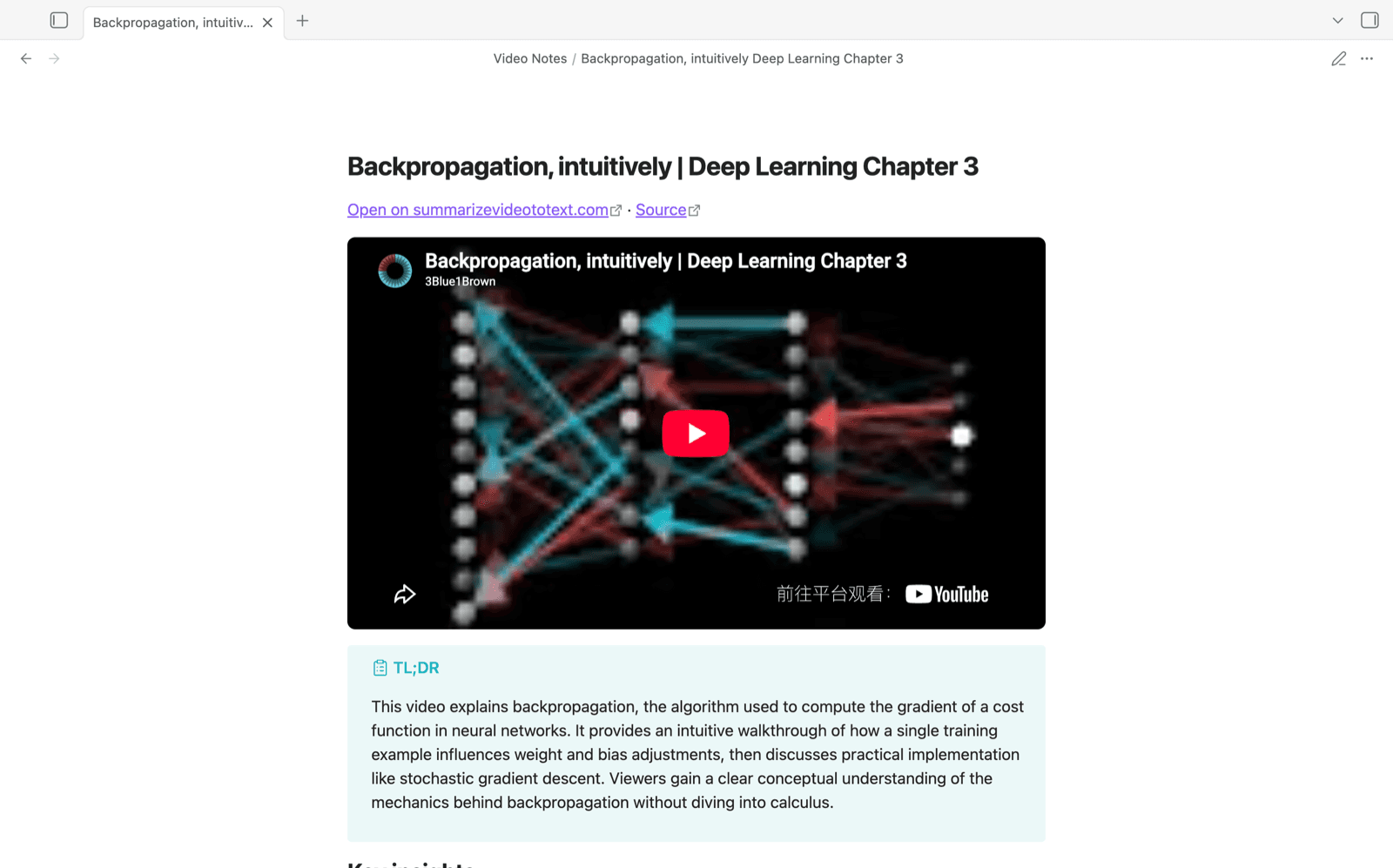
Every video note has the same structure, so a vault full of video notes reads the same way and Dataview can list them like any other note. Top to bottom:
- Frontmatter
- Title, source link, platform, channel, language and tags.
- Player
- The video embedded at the top (YouTube and TikTok). Every timestamp in the note is a link that seeks the player to that second without leaving Obsidian.
- TL;DR
- A few lines that tell you what the video is about and whether it is worth your time.
- Key insights
- The handful of ideas worth remembering.
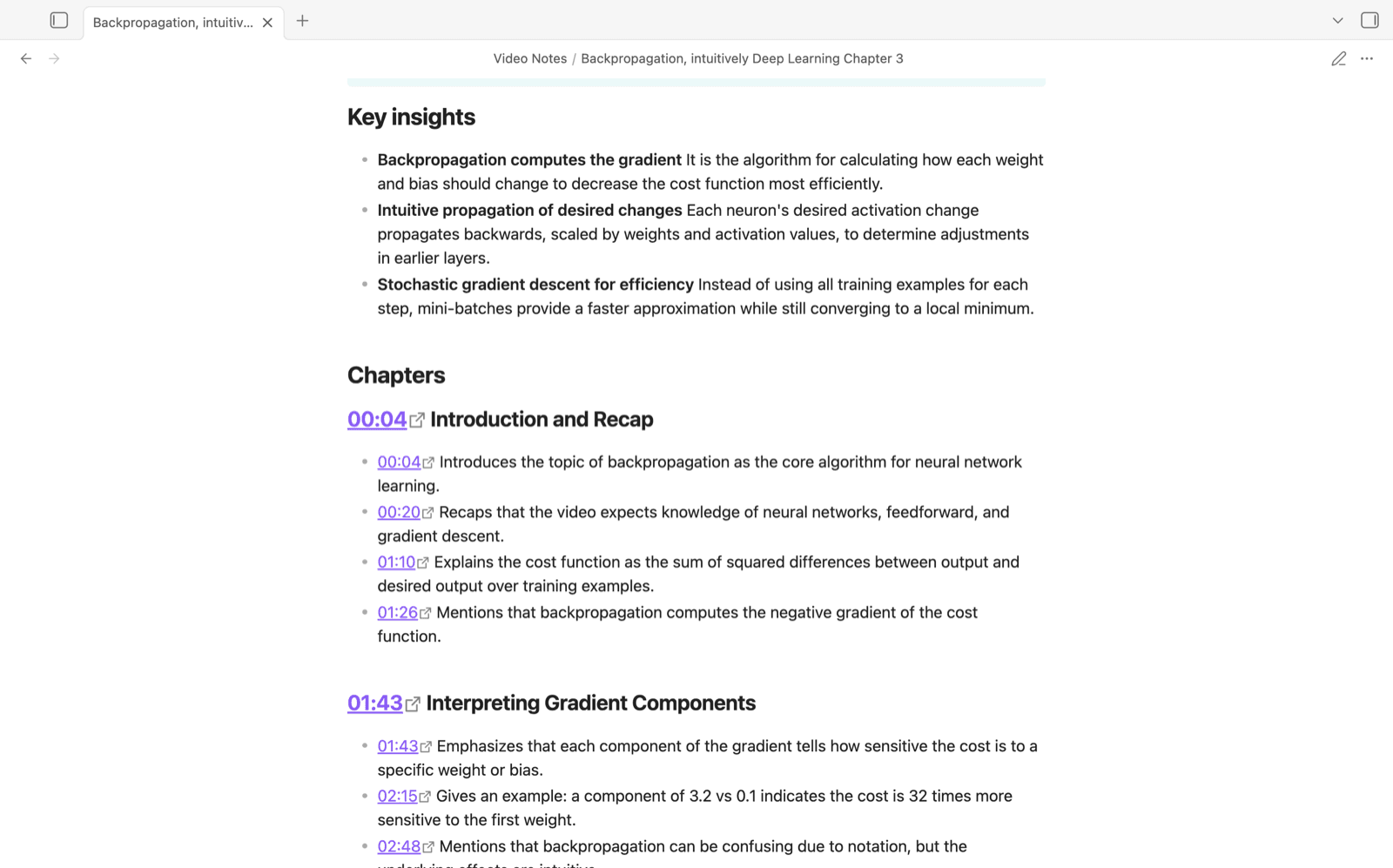
- Chapters
- The video split by topic, each with a timestamp and its own bullet points. This is where you jump straight to the two minutes you actually want.
- Summary (optional)
- A longer write-up in the template you picked: bullets, a table, a chapter digest and a few others.
- Quiz (optional)
- Multiple-choice questions with the answers collapsed, for checking whether you understood it.
- Q&A (optional)
- The questions you asked about this video, on the website or in Obsidian.
- Transcript (optional)
- The full timestamped transcript, folded under its own heading so it never gets in the way.
- My notes
- Your own section, right below.
The order follows how you read: first decide whether the video matters, then find the part you care about, and only then go to the full text if you need it.
Everything the AI generated is marked as one block. The Refresh video note command — in the command palette, or on the note’s right-click menu — replaces only that block. Whatever you wrote under “My notes” or anywhere else in the note, and any frontmatter you added yourself, stays exactly as it was.
5. Chat with the video
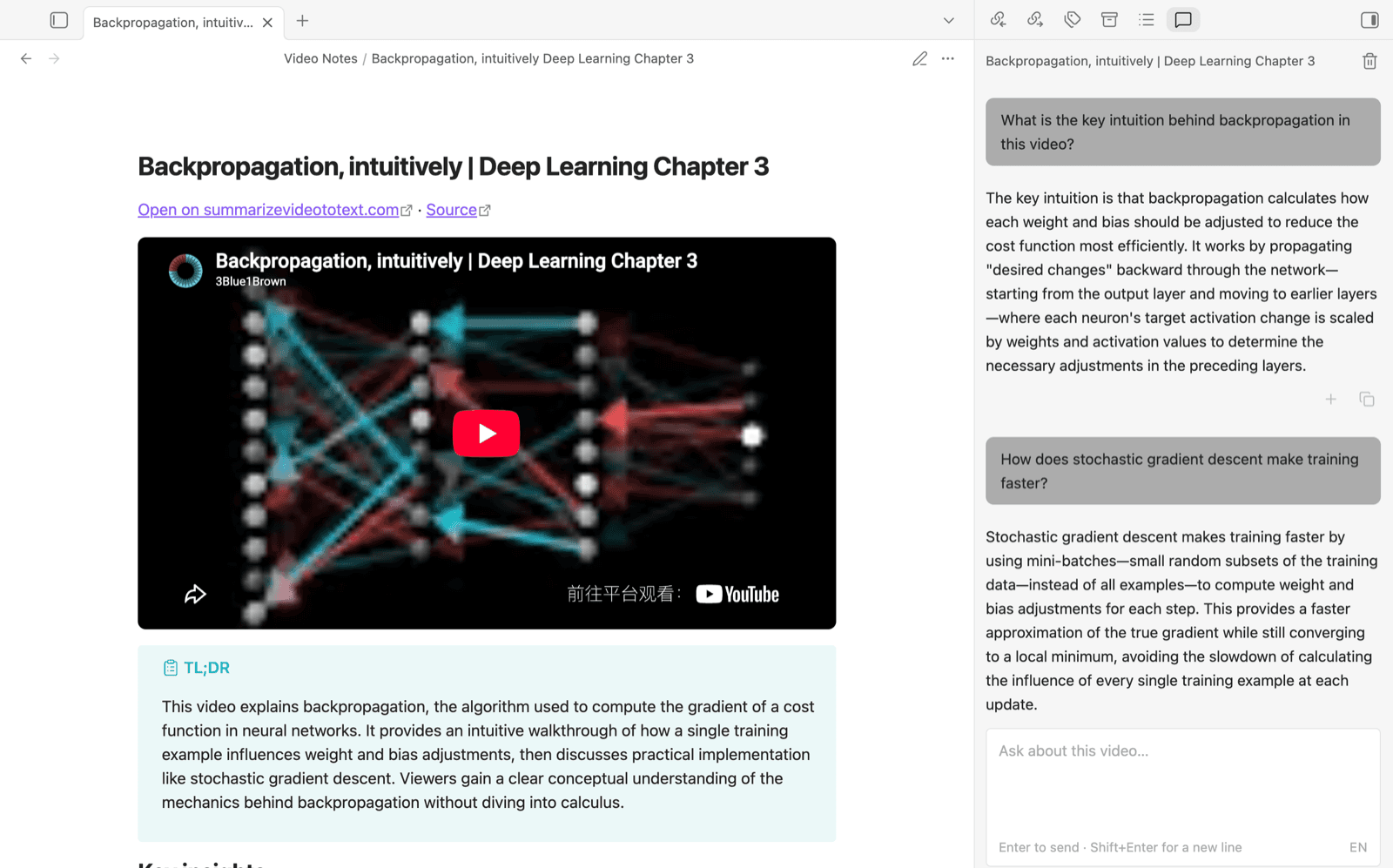
Run Open video chat and a panel opens in the right sidebar next to the note you are reading. Ask anything about the video and the answer comes from what was actually said in it. It is not a general chatbot: it answers about this video.
Each answer has two actions: copy, and add to note, which appends the question and answer to the end of the current note, where a refresh never touches it.
The conversation is stored per video and shared with the Q&A tab on the website, so a question you asked in the browser last week is still there in Obsidian today. If you open a note that is not a video note, the panel steps aside on its own.
6. Turn the quiz into flashcards
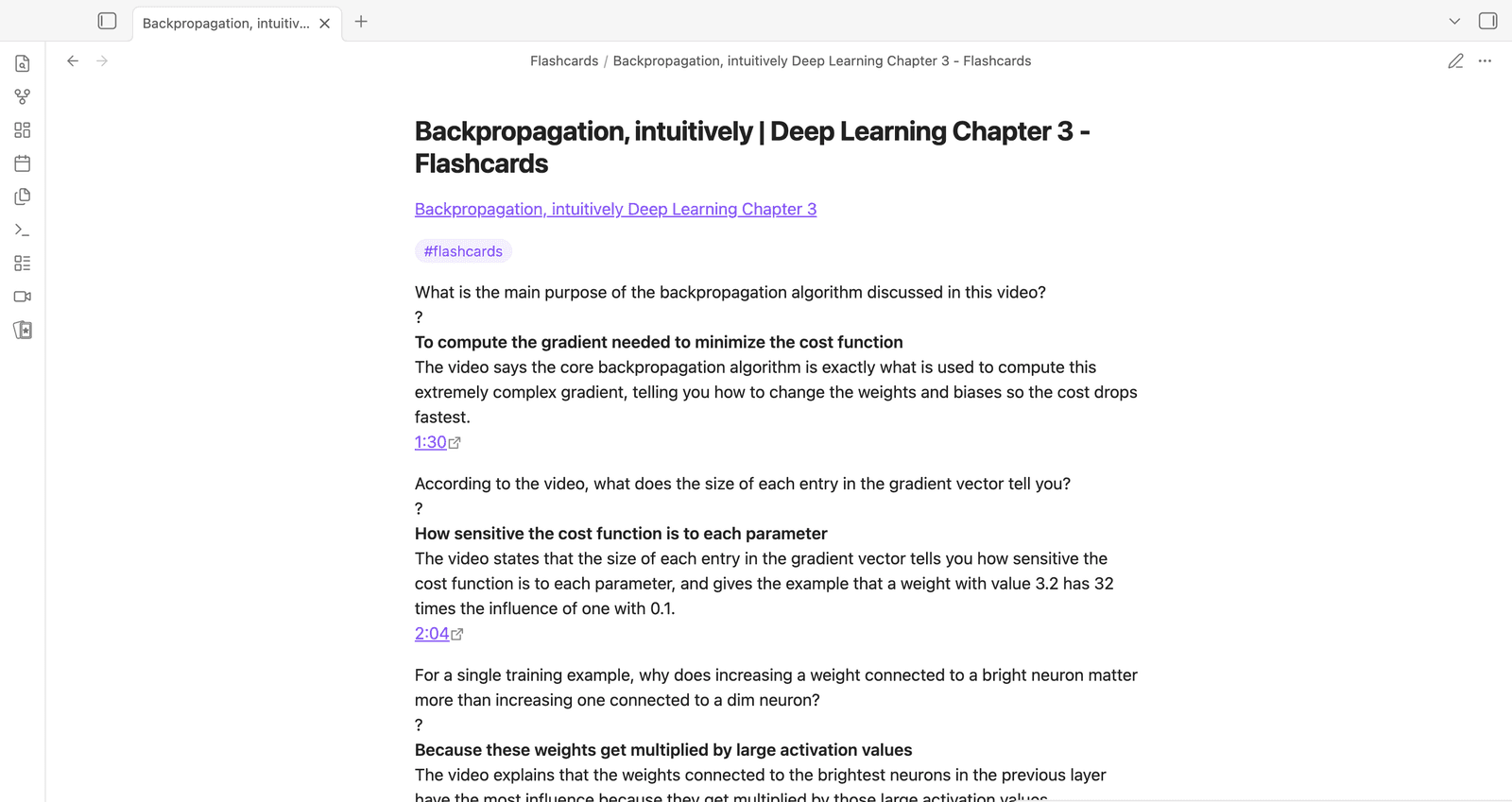
The cards are made from the video's quiz questions: the question on the front, and on the back the correct answer, the explanation and a timestamp link back to the moment it came from. Answer a card wrong and you are one click away from the exact second that explains it. The format is the one the Spaced Repetition plugin reads.
There are two ways to get them:
- While creating a note
- Tick Also make flashcards in the Summarize video dialog and both notes are written in one go. Turn on Make flashcards with every new note in the settings and that toggle starts out ticked, so every video you summarize comes with a deck.
- For a note you already have
- Open it and run Create flashcards from video note, or right-click the note in the file list and pick Create flashcards. Same for notes you made months ago, and for notes that came from the website.
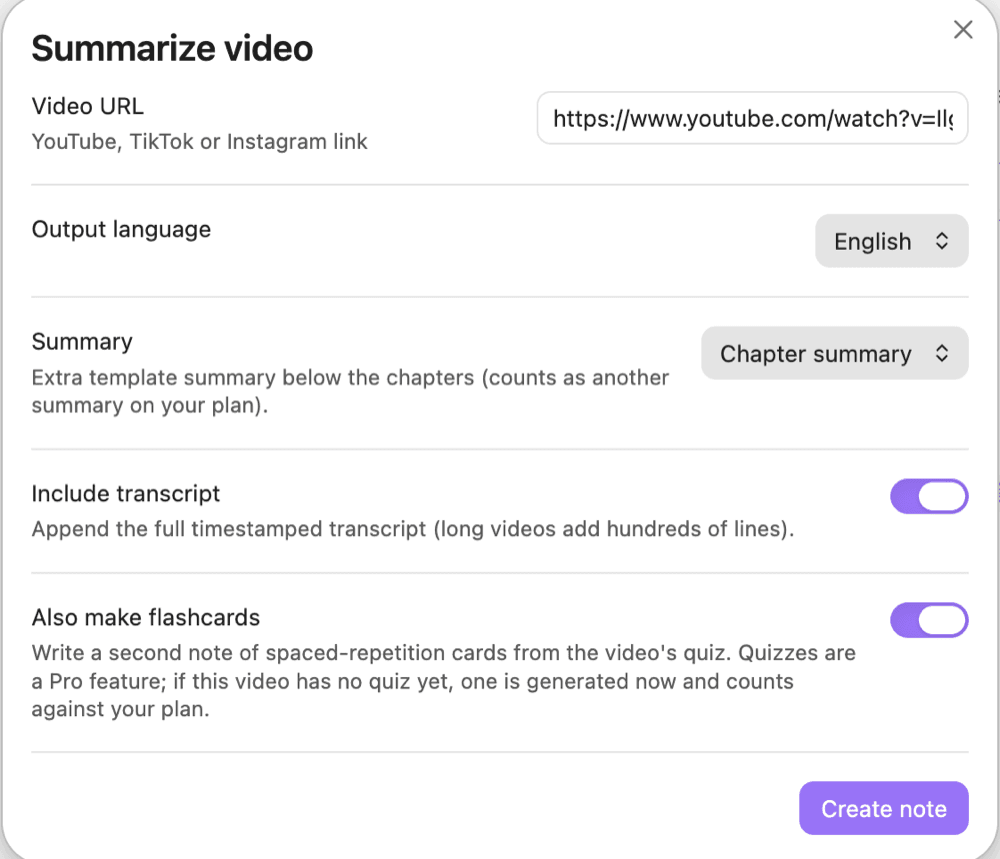
The cards live in their own note (Flashcards by default) with a deck tag at the top, so your video note stays a note and your deck stays a deck. Run it again after new questions appear and only the missing cards are added: the cards already there, the review schedule Spaced Repetition writes next to them, and any card you wrote yourself are never rewritten.
What it costs: quizzes are part of the Pro plan, so making cards needs a Pro account. If the video already has a quiz — you generated one on the website, or the note has the Quiz section — the cards are built from it and nothing extra is used. If it does not have one yet, a quiz is generated right then and counts against your plan, exactly as if you had opened the Quiz tab on the website. The video note is always written first: if the quiz cannot be made, the plugin says so and the note still stands.
7. Four ways to start a summary
Pick whichever fits how you work. They all produce the same note.
- Command palette
- Summarize video from URL. The clipboard is pre-filled if it holds a link, and the dialog lets you pick the language and template for this one note.
- Right-click a link
- In the editor or in reading view, right-click any video link and choose Summarize video.
- Select a link
- Select a link in a note and run Summarize video link in selection. No dialog, it uses your default settings.
- Ribbon icon
- The icon in Obsidian's left bar opens the same dialog as the command palette.
On any video page on summarizevideototext.com, Export → Obsidian sends the note straight into the plugin without running the analysis again. It does not matter which side you start from: the note is the same.
8. Settings
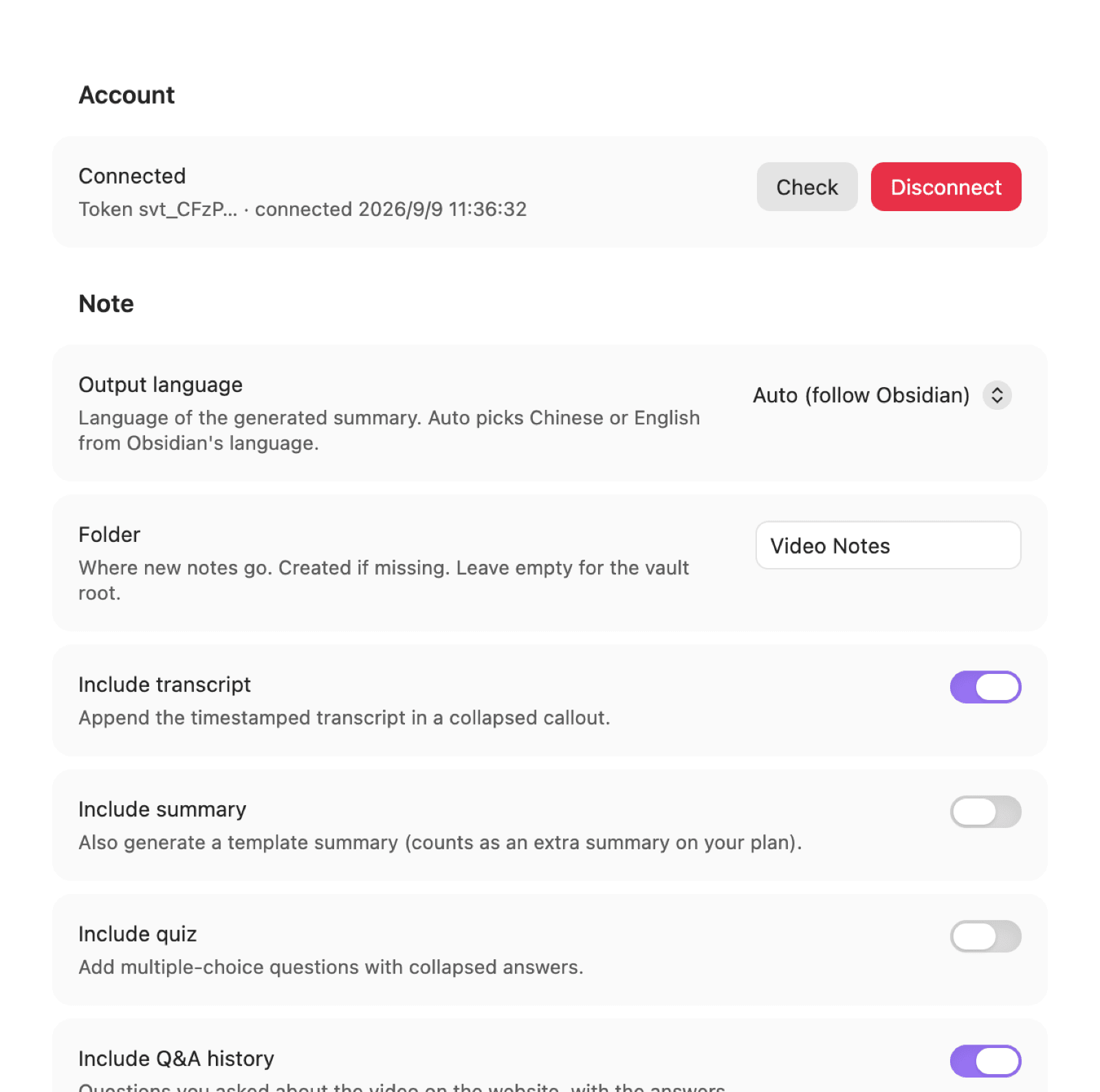
Everything lives in Settings → Summarize Video To Text. The defaults are sensible; most people only change the folder and the output language.
| Setting | What it does |
|---|---|
| Output language | Language of the note. Auto follows Obsidian's interface language. |
| Folder | Where new notes go (default Video Notes). Created if it does not exist. |
| Include transcript | Append the timestamped transcript under its own heading. |
| Include summary | Also request a template summary, and which template to use. |
| Include quiz | Add the multiple-choice quiz section. |
| Include Q&A history | Add the questions you asked about this video. |
| Embed video player | Player at the top of the note instead of the thumbnail; timestamps seek it in place. |
| Open note after creating | Open the new note as soon as it is written. |
| Make flashcards with every new note | Ticks “Also make flashcards” in the dialog by default. A video with no quiz yet gets one generated, which counts against your plan (Pro). |
| Flashcards folder | Where the card notes go. Created if missing. |
| Deck tag | The tag at the top of a card note, used as the deck name. A nested tag such as #flashcards/videos becomes a sub-deck. |
Ready to try it? It takes about a minute from install to the first note.
Install from the Obsidian directory