Browser extension
Summarize YouTube videos without leaving the page
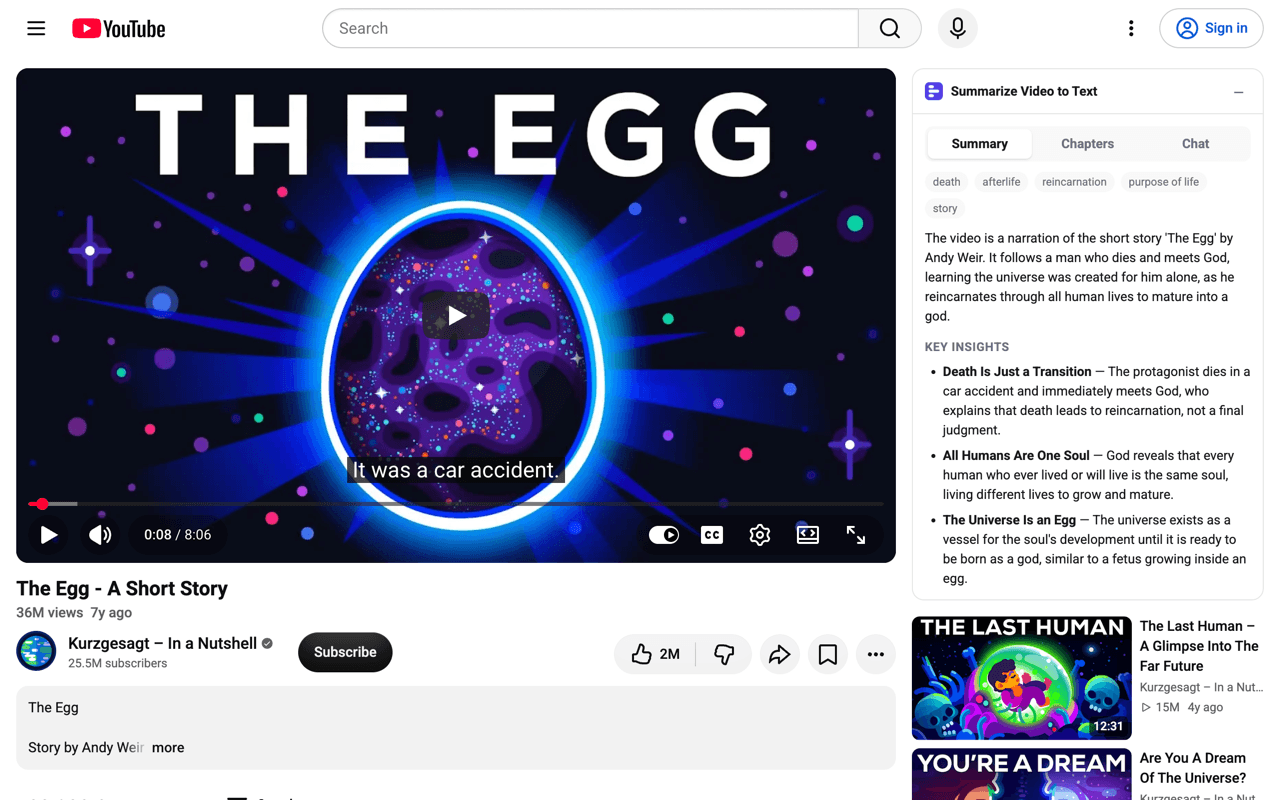
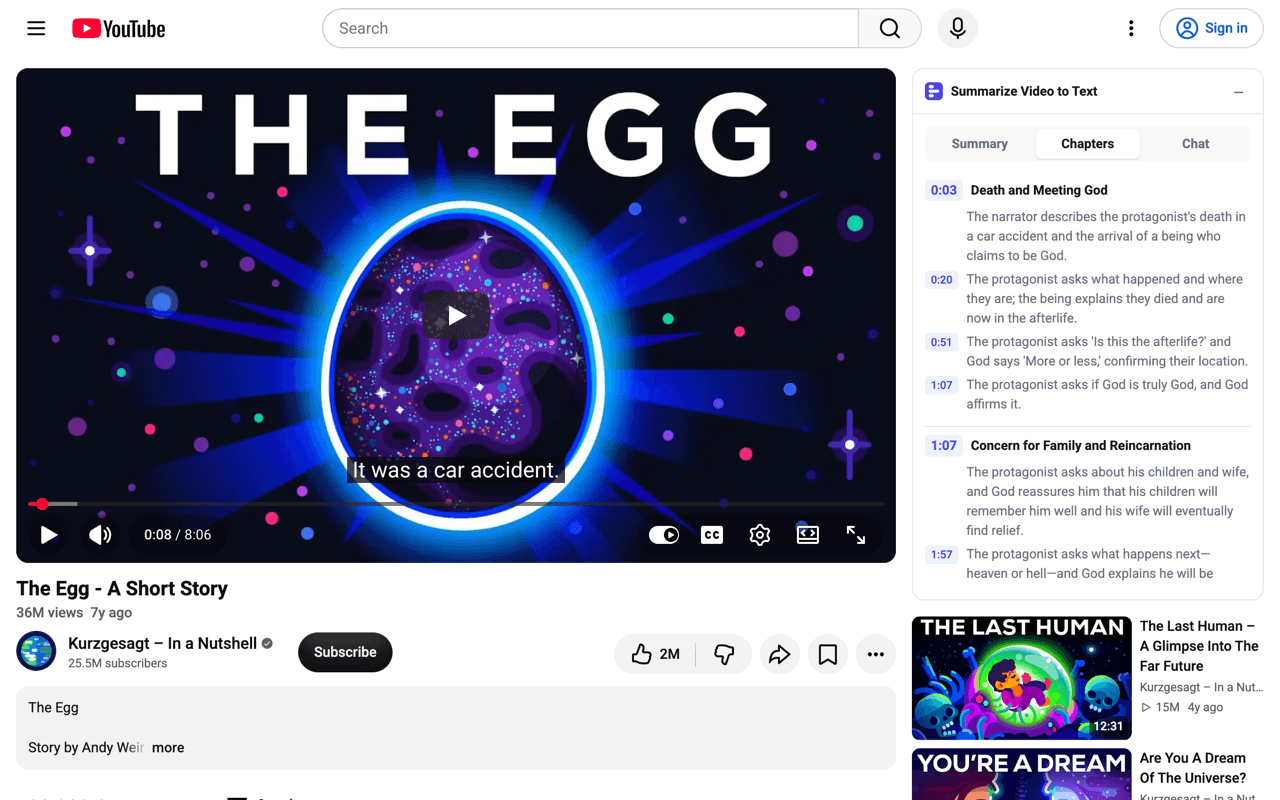
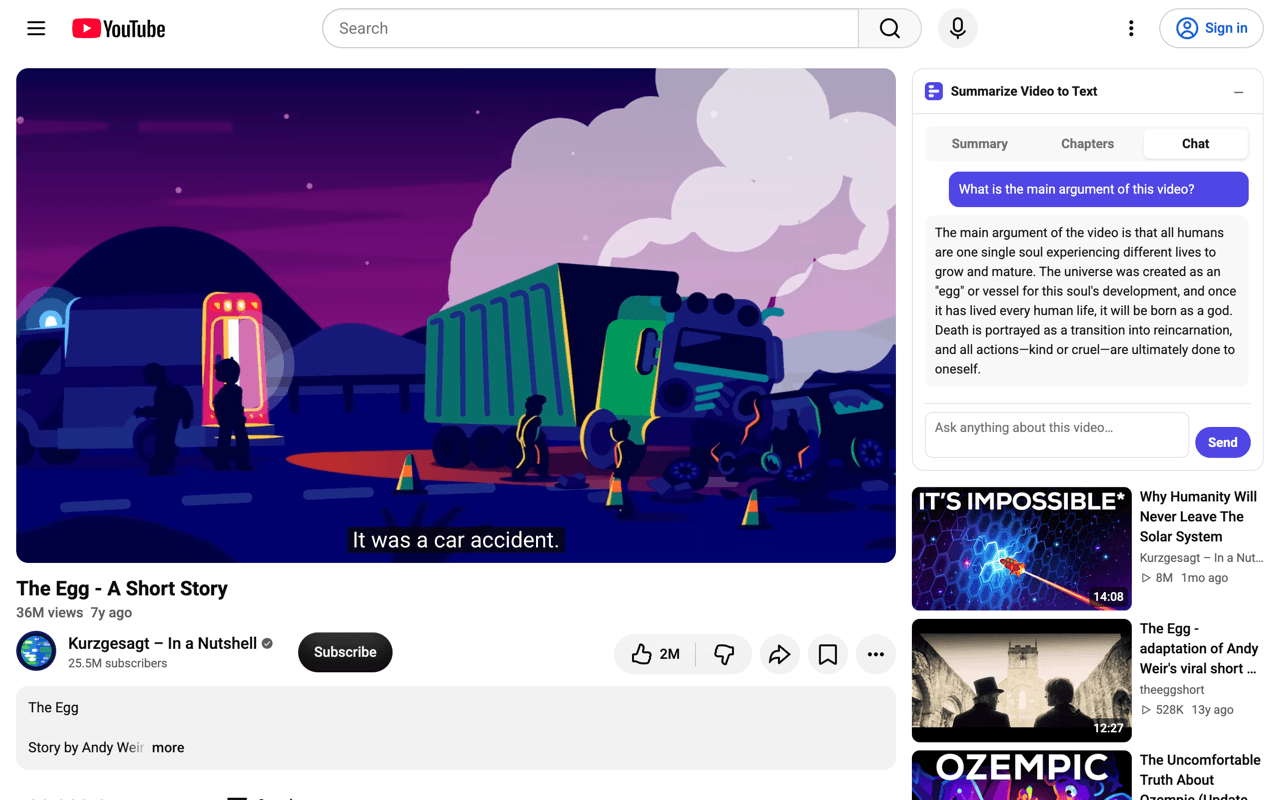
The extension puts a panel in the YouTube sidebar, above the recommendations: the summary of what the video actually says, chapters you can click to jump the player, and a chat box for anything the summary did not cover. Same extension on Chrome and on Edge — pick your store below.
- Summaries work without an account
- One codebase, published to both stores
- The panel reads the video's URL and title, nothing else
- No analytics and no third-party code
For Chrome, Brave, Arc, Opera and the other Chromium browsers that install from Google's store.
Add to Chrome →For Microsoft Edge. Edge can also install from Google's store, but only after you turn on “Allow extensions from other stores” — this one skips that step.
Add to Edge →1. Install it
Two stores, one extension: the same code, the same panel, the same version number. Install from whichever store matches your browser.
- Open the store page for your browser — Chrome Web Store or Microsoft Edge Add-ons — and confirm the install.
- Open any YouTube video. The panel appears in the right sidebar, above the recommended videos.
- Click “Summarize this video”. The summary and the chapters fill in within a few seconds.
Nothing to configure and nothing to sign in to for summaries. The panel collapses if you want it out of the way, and stays collapsed until you open it again.
2. What's in the panel
Three tabs, all of them about the video currently on screen.
- Summary
- The gist, the key insights and the topic tags — written from the video's own transcript, in the language your browser is set to.
- Chapters
- The video split into sections with timestamps. Click a timestamp and the player jumps there, which is the difference between skimming a two-hour talk and scrubbing through it.
- Chat
- Ask anything about the video. Answers are grounded in what was actually said in it, not in whatever the model happens to know.
3. TikTok, Instagram and X
The embedded panel is YouTube-only — those sites do not have a sidebar to live in. The toolbar icon covers them instead: click it on a TikTok, Instagram or X video and that video opens on summarizevideototext.com, where the same summary, chapters and Q&A are waiting. Right-clicking a video link gives you the same thing from the context menu.
Uploaded files — recordings, lectures, meetings, podcasts — stay on the site too: the extension is for videos that already live on a page.
4. Account and limits
Summaries and chapters run without an account, on the same free daily quota as the site. Chat asks you to connect a free summarizevideototext.com account, because every question is generated on demand.
- Click Connect in the panel's Chat tab. It opens summarizevideototext.com in a new tab.
- Sign in there — Google sign-in, no password to invent — and the tab hands the access token back to the extension.
- Come back to YouTube. The Chat tab is live, and your Pro plan, if you have one, applies here too.
Disconnecting is the reverse: the token lives only in the extension's own storage, so removing the extension removes it.
5. What it can and cannot see
The short version: it runs on YouTube and on our own site, and talks to nothing else.
- Reads
- The URL and the title of the video you are watching. That is what gets sent to be summarized — not the page, not the comments, not your history.
- Stores
- Three things, locally: the access token from connecting your account, a short-lived random value used during that handshake, and whether you collapsed the panel.
- Talks to
- summarizevideototext.com and nothing else. No analytics, no trackers, no third-party code, no remote scripts.
- Runs on
- YouTube watch pages and summarizevideototext.com. On every other site it does nothing at all until you click the toolbar icon.
Install it and the next video you open already has a summary next to it.